 WALKSCAPE
 Crosswave Edition
Using Google Analytics to See How Readers Find a Blogger Site
2025-12-21
Publishing a post is one part of running a blog. Another begins when you can see which pages bring readers in, where visits come from and how people move through the site. Google Analytics gives a publisher a way to examine some of that activity.
Google Analytics 4 reports events recorded on your site, including page views, and can summarize traffic sources, devices and engagement. The reports describe what the configured measurement captured. They give an editor patterns to investigate, rather than a way to identify individual readers.
Why the Blogger integration is straightforward
Google provides a built-in setting for connecting Blogger and Google Analytics. It is convenient if your blog uses a compatible theme.
On a self-hosted WordPress site or another platform, the setup might use a plug-in, a tag manager or an integration in the theme. The right method depends on how the site is built.
In Blogger’s supported Layouts themes, enter the measurement ID beginning G- in the dashboard. First-generation Classic templates require a different setup.
Connect a Blogger site to GA4
Set up the web stream in Google Analytics, then connect it to the blog in Blogger.
Create the property and web stream
Sign in to Google Analytics.
In Admin, create or open a GA4 property and add a web data stream for the blog’s URL. Copy the stream’s measurement ID beginning G-.
Enter the measurement ID in Blogger
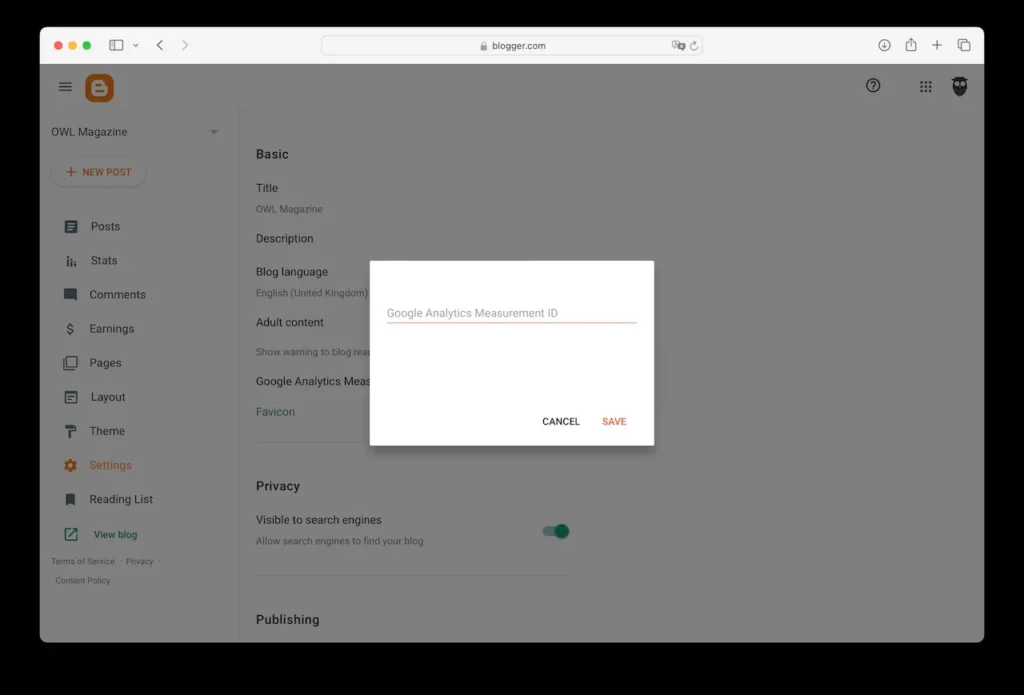
Once you have the measurement ID, open the blog in Blogger.
The option is in the following part of the dashboard.
- Settings → Basic → Google Analytics Measurement ID
Paste the G- ID and save. If the blog uses a first-generation Classic template, use the theme-specific instructions instead of assuming the setting adds a tag.
Check the Realtime report after visiting the site. Standard reports can take up to a day or more to populate. A quiet blog may also have very little new traffic to show immediately.
What the reports can show
The more useful questions start to show up once you have collected enough information to compare pages or periods.
For example, compare which articles are landing pages for organic search and which have stronger engagement. Average engagement time measures time the page is in focus under GA4’s rules. Treat any one figure as a clue and look at related measures before changing your plans.
You can also see the mix of mobile and desktop traffic. If readers usually arrive on a phone, spend some time looking at the posts on a phone yourself.
What the built-in integration simplifies
A built-in setting saves you from editing the theme to insert the same tag. Check afterward that you did not also leave a second copy running through a custom theme or a tag manager.
The benefit is small but practical: the normal Blogger workflow gives you one place to enter the measurement ID.
Every setup still needs to account for its consent settings, browser restrictions and the traffic it is configured to exclude.
Let the site build up a record
A day or two of data tells you what happened over a day or two. Over months you can see which articles continue to find people and which are tied to a brief burst of interest.
That longer record is useful when you are deciding what to cover next. It can suggest which old article deserves a follow-up or whether a recent change made a practical difference for readers.
Search Console gives you a view of how people reached the site from Google Search. Analytics gives you a separate view of measured activity after they arrived. Use the two reports for the questions they can actually answer.